· ~14 min read · 2,439 words · 7 sections
QNAP Qlocker Ransomware Recovery: What QNAP's QRescue Gets Wrong, and How I Fixed It Anyway

Summary. A QNAP TS-221 was hit by Qlocker ransomware, which encrypted personal photo folders into individual .7z archives and deleted the originals. QNAP's own official recovery path — a manually-installed package called QRescue — failed at three separate points on this hardware: a missing UI field for the label QRescue's installer silently requires, an undocumented symlink dependency the installer checks for but never creates on its own, and finally a genuine CPU architecture incompatibility that crashes QNAP's own recovery binary outright. Working around all three, by driving the open-source recovery engine QNAP's tool is built on top of directly over SSH, recovered 75,000+ files from the NAS's free space — including irreplaceable family photos, among them our kids' birth photos. This is the full technical trail, written so the next person hitting the same wall doesn't have to reverse-engineer it from scratch.
1 The Incident#
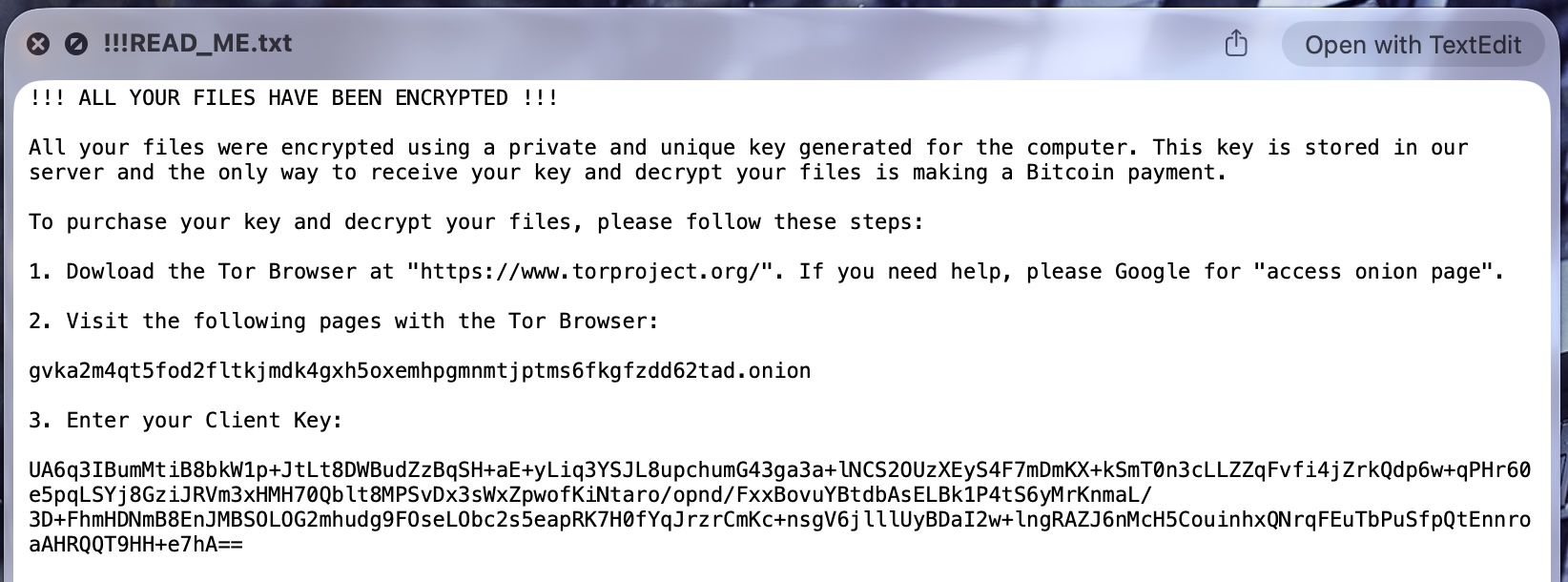
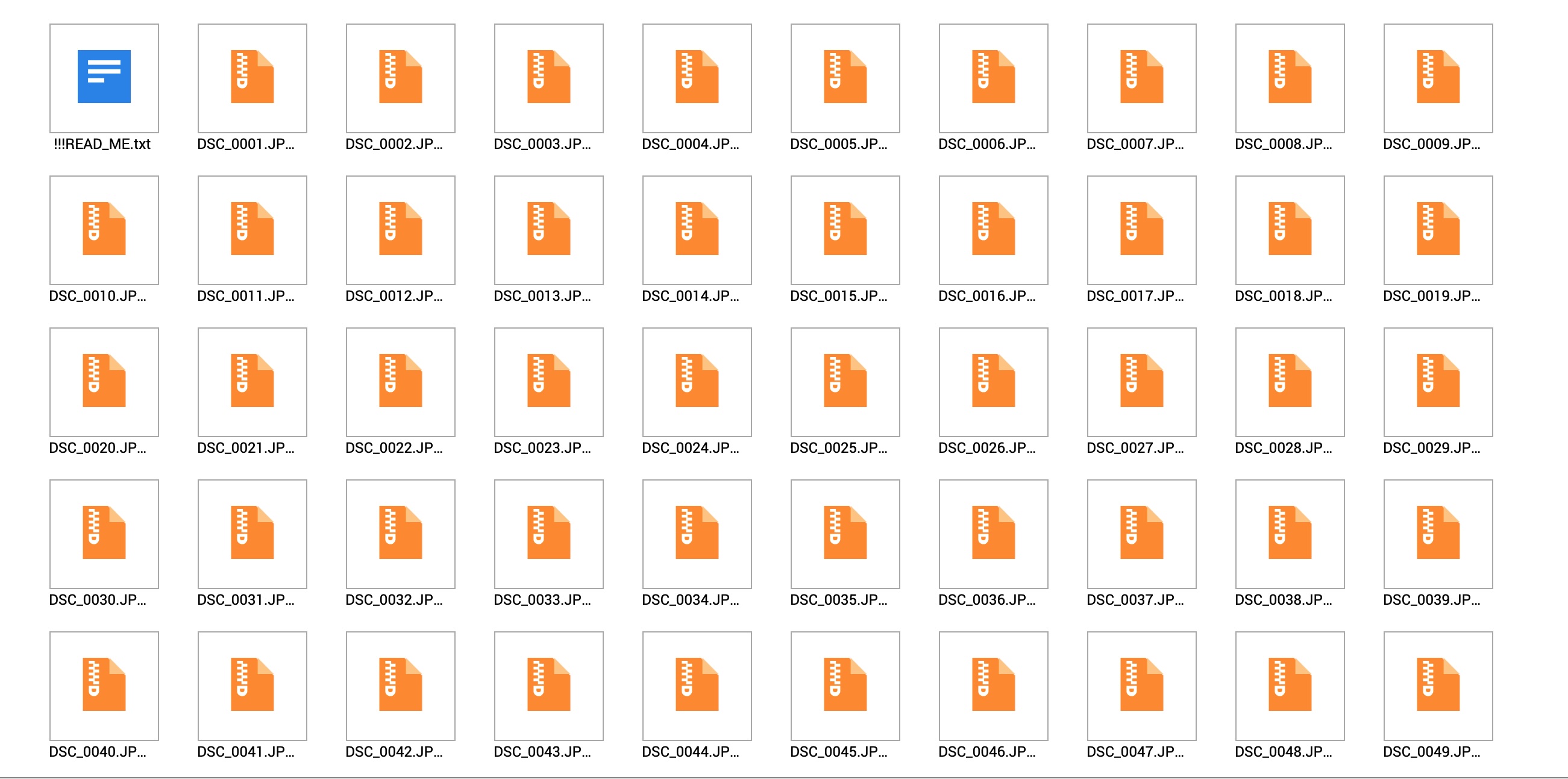
Qlocker is a ransomware strain that has hit QNAP NAS devices in waves since 2021, exploiting weaknesses in exposed QNAP services to gain access and then abusing the NAS's own bundled 7-Zip binary to encrypt files in place. It doesn't behave like classic ransomware that rewrites a file in place with encrypted bytes — instead, for each original file it finds, it:
- Reads the original file.
- Writes a password-protected
.7zarchive containing it, named after the original (e.g.DSC_0011.JPGbecomesDSC_0011.JPG.7z). - Deletes the original file.
- Drops a ransom note — on this system,
!!!README_ME.txt— into every affected folder.
That third step is the detail the entire rest of this article hinges on: Qlocker doesn't overwrite your data, it deletes it after copying it elsewhere in encrypted form. On a conventional filesystem, a deleted file's data blocks aren't wiped — they're just marked free, available to be reused by the next write. Until something actually reuses them, the original bytes are still sitting on disk, recoverable, in plain undeleted files, by any tool that can read raw free space rather than just the live directory tree.
That's the entire premise of this recovery. It's also why every day of continued normal NAS activity after an attack like this reduces what's recoverable — every write is a chance to overwrite a block you'll never get back.
2 QNAP's Official Fix, and Where It Breaks#
QNAP's own published remediation path is a tool called QRescue, distributed as a manual App Center install rather than a normal store listing. Their tutorial's prerequisites are simple on paper:
- An external USB drive, larger than your NAS's used storage.
- Formatted EXT4, with the filesystem label set to exactly
rescue. - A folder named
recup1(orrecupNper volume) created on it. - QRescue installed manually via App Center → Install Manually, using a package downloaded from QNAP directly.
Break #1: The label field that isn't there#
On this NAS's QTS build (4.3.3.2784), the External Storage "Format" dialog has a File System dropdown and encryption options — and no label field at all. QNAP's own instructions assume it exists. It doesn't, on this version.
The fix is a non-destructive relabel over SSH, without reformatting (which would have wiped the disk unnecessarily):
[~] # tune2fs -L rescue /dev/sdi1
[~] # tune2fs -l /dev/sdi1 | grep "volume name"
Filesystem volume name:   rescue
[~] # blkid /dev/sdi1
/dev/sdi1: UUID="31f64bb3-003b-4619-bcb4-d74f11560b38" TYPE="ext4" LABEL="rescue"
Note: QTS's minimal BusyBox shell didn't even have e2label — tune2fs, found at /sbin/tune2fs, did the same job.
Break #2: An undocumented symlink dependency#
With the label correctly set and confirmed via blkid, the App Center install still failed, repeatedly, with a genuinely misleading error:
"[App Center] Failed to install 'QRescue' due to no external disk or the label name does not match 'rescue'."
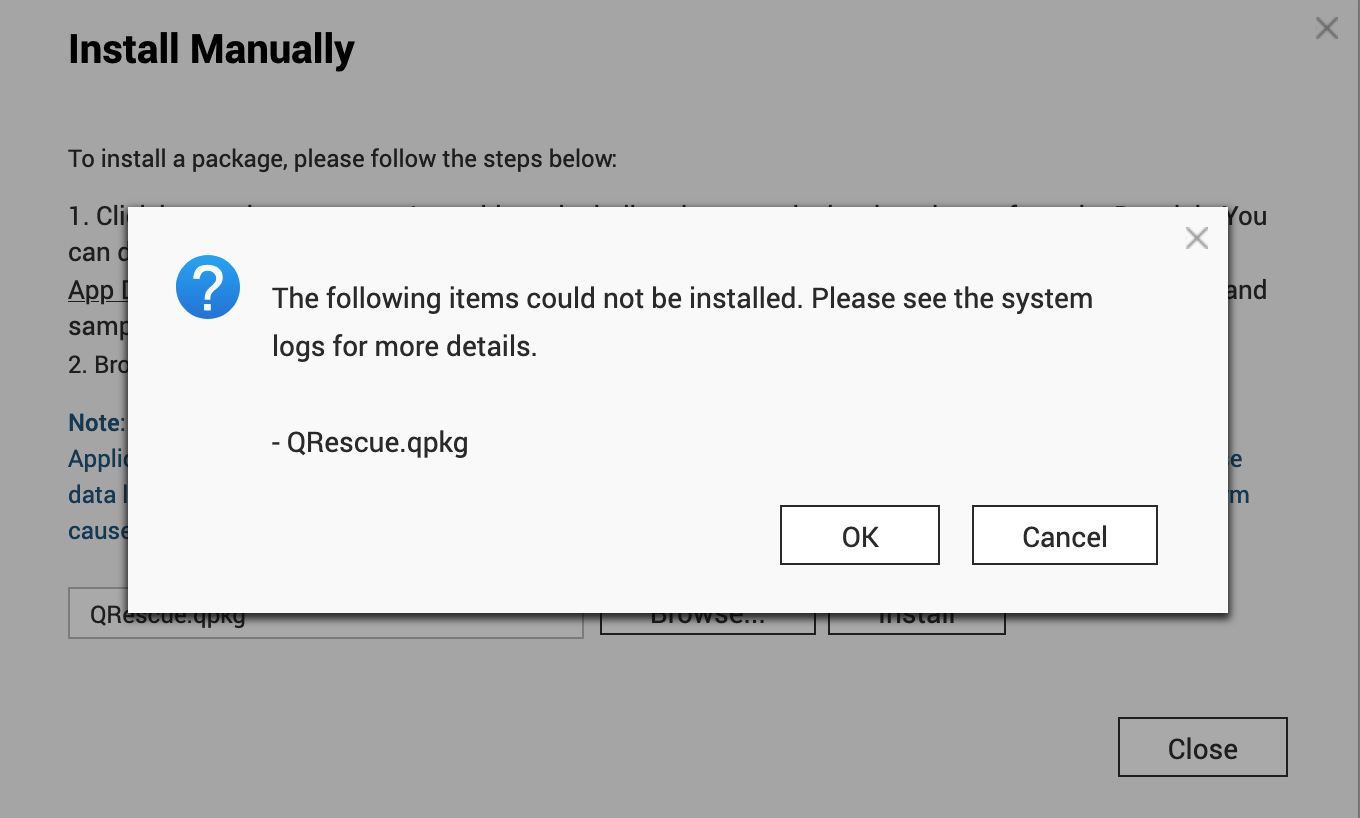
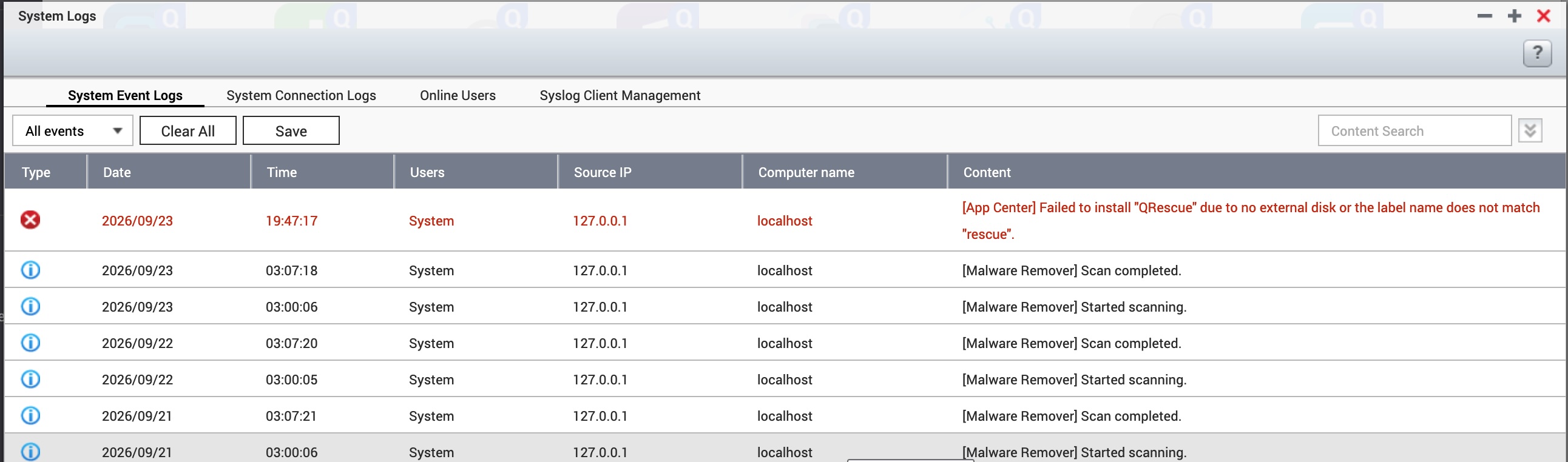
That error message conflates two completely different failure conditions into one opaque sentence — unhelpful when you've already confirmed the label is correct. The actual cause required reading the QPKG installer's own embedded script directly:
[~] # strings QRescue.qpkg | grep -n -i "rescue\|label" | head -20
10:### QRescue custom -- start
11:QINSTALL_PATH="/share/rescue"
12:if [ ! -L "/share/rescue" ]; then
13:nc_log "[App Center] Failed to install \"QRescue\" due to no external disk or the label name does not match \"rescue\"."
Root cause. The installer doesn't actually check the filesystem label at install time. It checks for a symlink at /share/rescue pointing to the mounted disk — a symlink QTS normally creates automatically as part of its own GUI-driven Format workflow, tied to the same label field that this QTS build never exposed. Relabel the disk manually after the fact, and that symlink simply never gets created, no matter how correct the underlying filesystem label is.
Fix: create it by hand.
[~] # ln -s /share/external/sdi1 /share/rescue
[~] # ls -la /share/rescue
lrwxrwxrwx    1 admin    administ        20 ... /share/rescue -> /share/external/sdi1/
The App Center install succeeded immediately afterward.
Break #3: A genuine CPU architecture bug#
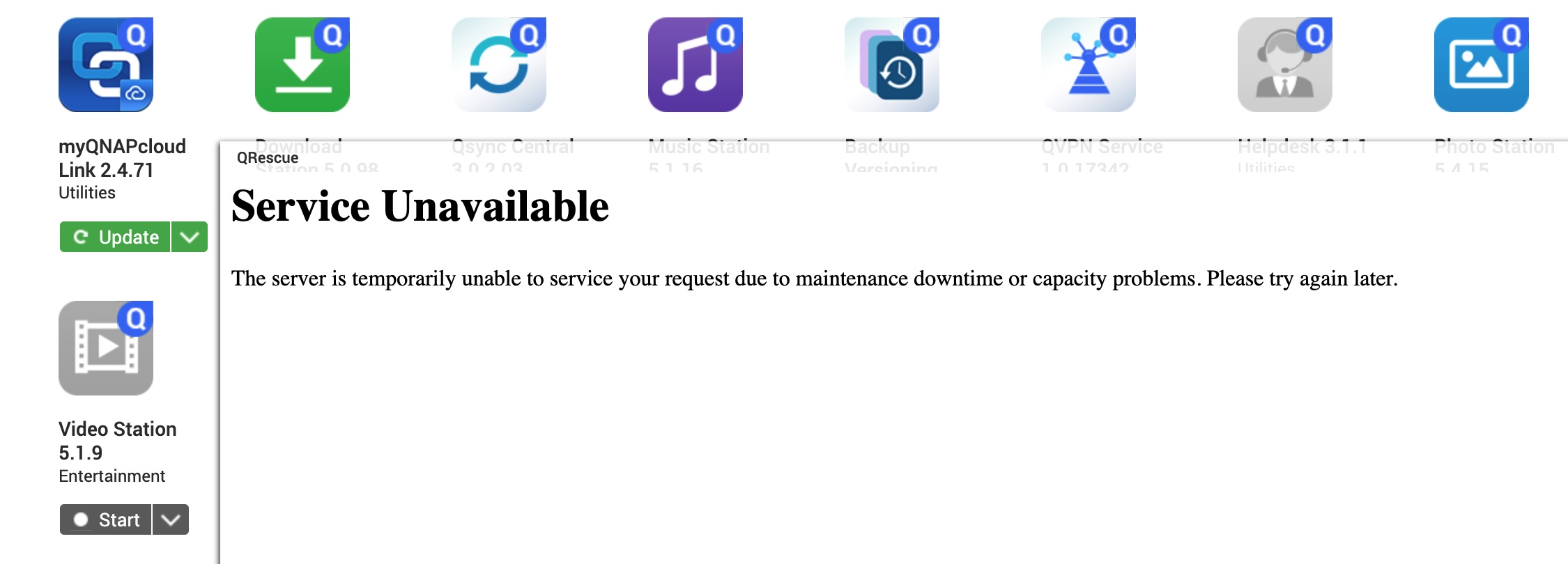
With QRescue installed, opening it from App Center returned a generic Apache "Service Unavailable" page instead of the tool's interface.
QRescue's qrescue.sh daemon-control script detects CPU architecture to select the right pre-built binary:
ARCH=
case `uname -m` in
x86_64)
    ARCH=amd64
    ;;
aarch64)
    ARCH=aarch64
    ;;
armv7l)
    ARCH=armhf
esac
This NAS reports:
[~] # uname -m
armv5tel
Root cause.armv5telmatches none of the three cases.$ARCHstays empty, and the daemon-start function tries to execute./qrescue_— a file that doesn't exist. QNAP only shippedarmhf(ARMv7),amd64, andaarch64builds of their proprietary recovery binary. There is no ARMv5TE build. This is a genuinely older, lower-power NAS CPU family QNAP's own recovery tool doesn't support at all — and it fails silently, presenting as a generic web server error rather than a clear "unsupported hardware" message.
Confirmed directly by executing the bundled binaries by hand:
[~] # ./photorec_armhf/photorec --version
PhotoRec 7.2-WIP, Data Recovery Utility, May 2021
...
OS: Linux, kernel 3.4.6 ... armv5tel

[~] # ./qrescue_armhf --help
Illegal instruction
PhotoRec — the open-source engine QNAP bundles inside QRescue — ran perfectly. QNAP's own proprietary qrescue_armhf binary crashed outright with a SIGILL. Same package, same architecture folder, two very different outcomes.
3 The Workaround#
Since QRescue's own daemon and post-processing binary can't run on this hardware at all, the fix was to stop trying to use QRescue as a product and instead use it as what it actually is: a distribution mechanism for a properly-working, open-source recovery engine. QNAP's own tutorial describes running PhotoRec directly via SSH as a manual step anyway — that step works fine; it's only QRescue's own proprietary wrapper and post-processing binary that don't.
Neutralizing a live threat to the recovery itself#
Before running anything that writes for hours, a check of running processes surfaced something that needed to be dealt with first:
[~] # ps -ef | grep -iE "hbs|backup|sync|rsync"
...
23629 admin  qsyncsrv_monitor -pid:23575 -reg:/share/external/sdi1 -client:qbox ...
Finding. Qsync Central — QNAP's file-sync service — was actively watching several folders for changes, including, critically, the external "rescue" disk itself. Left running, it risked both overwriting recoverable deleted blocks on the live data volume via continued sync activity, and writing unrelated synced files into the recovery workspace mid-scan.
Stopped via App Center, then confirmed at the process level (not just trusting the UI):
[~] # ps -ef | grep -i qsync
10473 admin  /usr/bin/qsyncman
[~] #
Only the idle base coordinator remained — the active sync workers were confirmed gone before proceeding.
4 The Recovery#
| Target | /dev/md0 — the assembled RAID/striping volume, not the individual member disks (striped data is only coherent at the assembled device level) |
|---|---|
| Filesystem type | ext2/ext3 (covers ext4's recovery mode too) |
| Scan mode | Free space only, not Whole partition |
| Destination | External rescue disk, separate physical device from the source |
The "Free" vs. "Whole" choice matters more than it looks. Given Qlocker's read-then-delete-then-encrypt behavior, the recoverable originals live specifically in blocks the filesystem has marked free — not in the still-allocated space your intact files occupy. Scanning free space only:
- Skips your still-intact files entirely — no risk of touching or duplicating them.
- Scans dramatically less data than a full-partition carve, which matters enormously on underpowered NAS hardware.
- Targets exactly where the deleted originals actually are.
Pass one: everything, and a capacity lesson#
The first run used PhotoRec's default (all file-type signatures enabled). Within 15 minutes, at only ~0.4% of the free-space map scanned, it had already written 103,698 files and consumed several gigabytes on the rescue disk — extrapolated forward, this run would have exceeded the rescue disk's capacity long before finishing the scan.
Pass 1 - Reading sector   46633432/11714790656, 39849 files found
Elapsed time 0h06m30s - Estimated time to completion 27h06m21
txt: 37590 recovered
elf: 455 recovered
gz: 208 recovered
gif: 183 recovered
png: 136 recovered
...
Most of that early output was unrelated noise — years of deleted temp files, package fragments, database internals — none of it what we were actually after. The run was stopped deliberately (103,698 files saved, recovery aborted cleanly, nothing lost) rather than let it run unbounded.
Pass two: filtered, and run to completion#
PhotoRec's File Opt menu lets you disable every file-type signature except the ones you actually need. Restricting to jpg only, then re-running against the same free-space map:
Pass 1 - Reading sector  11714790656/11714790656
75059 files saved in /share/external/sdi1/recup1/recup_dir directory.
Recovery completed.
75,059 jpg files recovered, using only 9.9GB of the 927.8GB rescue disk — full completion, not another partial run. Filtering to only what you need doesn't just save time; on a huge volume, it's the difference between a scan that finishes and one that doesn't.
5 The Result#

75,000 files is not a browsable number. Sorting by file size (genuine photos run 2–3MB; app-bundled clip-art and thumbnail-cache duplicates are far smaller) narrowed the search fast. One immediately obvious noise source was worth understanding rather than dismissing: many recovered files sat inside reconstructed .@__thumb/ folders with s100/s800/default-prefixed names — QNAP Multimedia Console's own thumbnail-cache naming convention. That's actually a good sign: it meant PhotoRec's ext4-aware, inode-based recovery was reconstructing real original folder paths, not blind signature-carving — the files it found genuinely came from where they used to live.
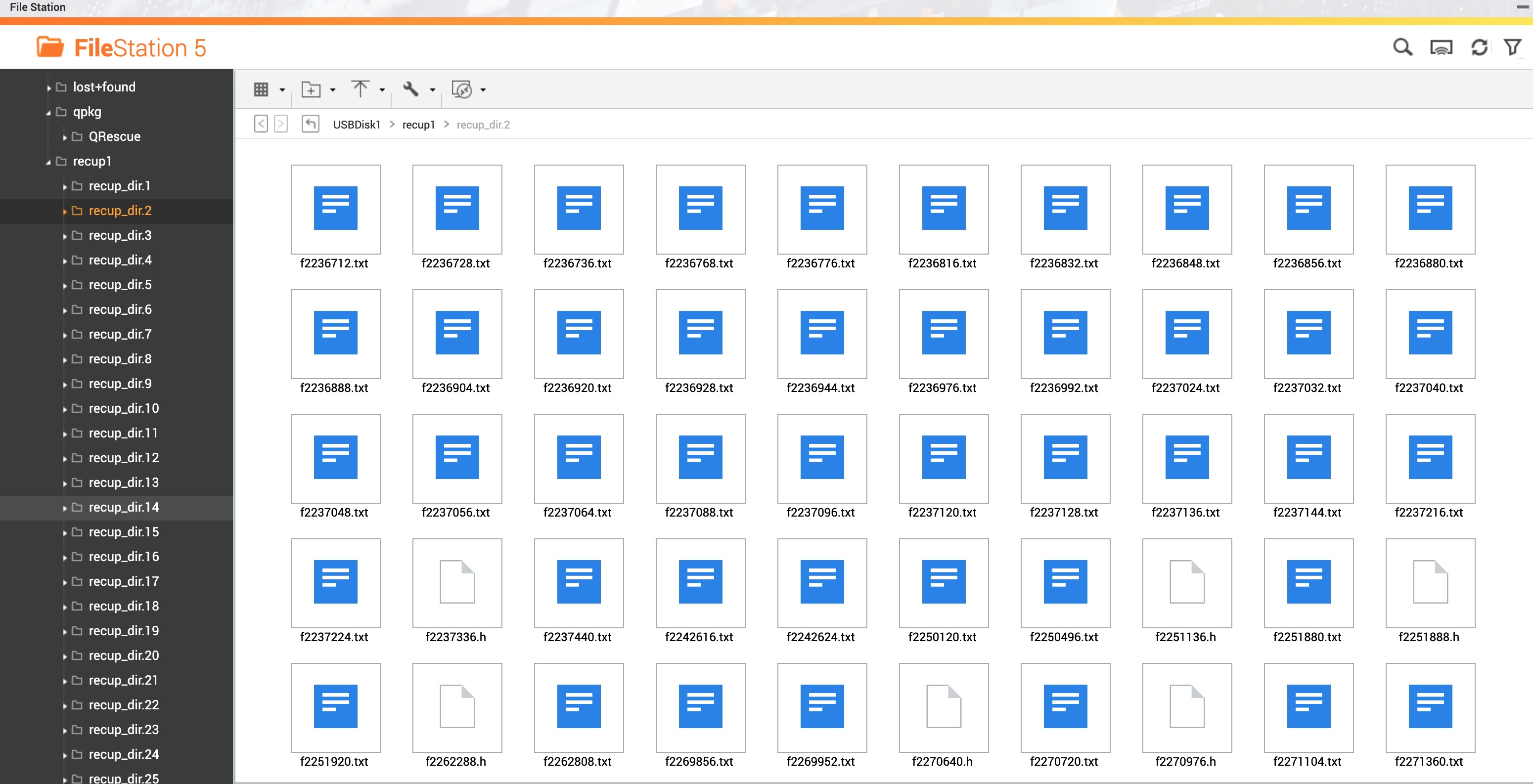
Then, in one of the larger recovered folders: real photographs. A beach. A carousel. A sailboat. And then — the photos this recovery was actually for.
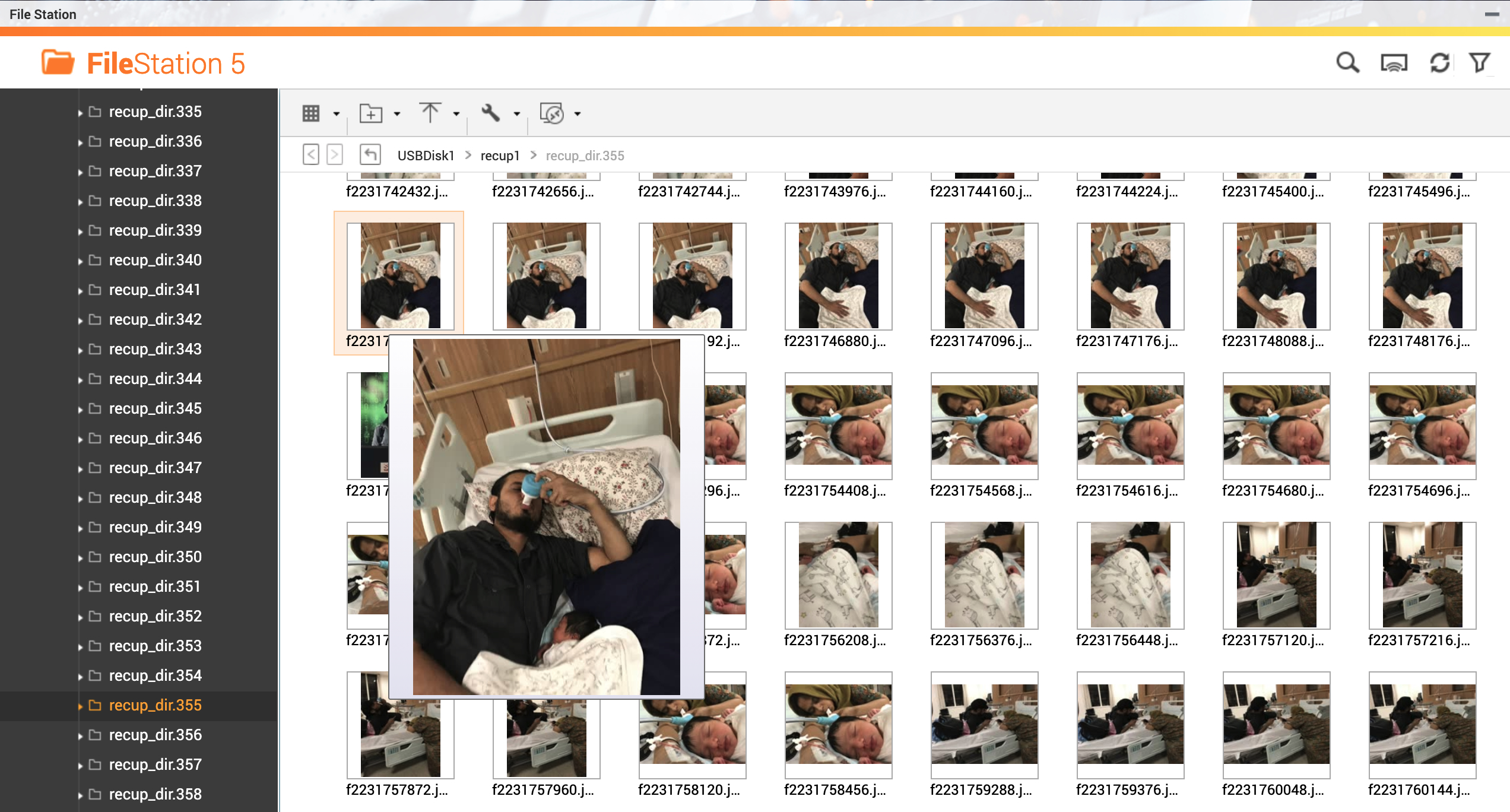
Honest caveat. Not everything is recoverable, and it's important to be upfront about that rather than oversell the outcome. Every write to the volume in the time between the original attack and this recovery attempt — including background services quietly running the whole time — reduces what's left to find. This recovery worked because enough of the right blocks hadn't yet been overwritten. That won't be true for everyone, and it becomes less true the longer you wait.
6 What QNAP Should Fix#
QNAP built a legitimate, useful recovery tool. On this hardware, three separate defects meant a technical user with SSH access and hours to spend reverse-engineering an installer script was required to make it work at all — which is the opposite of who actually needs a "rescue" tool during a ransomware incident. Specifically:
- Ship an ARMv5TE build, or at minimum, detect an unsupported architecture at install time and fail with a clear, actionable message — not a silent daemon-start failure that surfaces as a generic web server error.
- Fix the architecture-detection logic in
qrescue.shto explicitly handle (or explicitly reject with a real error) anyuname -mvalue it doesn't recognize, instead of leaving$ARCHempty and trying to exec a file that doesn't exist. - Make the External Storage Format dialog consistent across QTS versions. The official tutorial assumes a Label field that doesn't exist on this build — forcing manual SSH intervention for a step meant to be the easy part.
- Either document the
/share/<label>symlink dependency, or have the installer create it itself if it's missing rather than failing with a message that conflates two different, independently debuggable failure conditions into one sentence. - Detect and warn about actively-syncing services (Qsync, HBS3, etc.) watching a disk about to be used as a recovery destination, and offer to pause them automatically.
7 Lessons for Other Victims#
If you're reading this because Qlocker, DeadBolt, eCh0raix, or something similar hit your own QNAP NAS, here's the practical checklist:
- Stop write activity to the affected volume immediately — pause sync services, backups, and anything else that touches the drive. Every write after the attack is a chance to permanently overwrite a block you could otherwise have recovered.
- Don't panic-format or reuse any drive involved. If you have spare storage, prioritize setting up a proper recovery disk correctly rather than experimenting on the affected one.
- If your QTS build has no Label field in the Format dialog, relabel over SSH with
tune2fs -L <label> /dev/sdXN— non-destructive, and confirmable withtune2fs -lorblkid. - If QRescue's install fails with the ambiguous "no external disk or label" error after you've confirmed the label is correct, check for the missing
/share/<label>symlink before assuming anything else is wrong. - If QRescue shows "Service Unavailable" after installing, check
uname -m. If it's notx86_64,aarch64, orarmv7l, QNAP's own binary likely can't run on your NAS — but PhotoRec, bundled inside the same package, usually still can, run directly over SSH. - Use "Free" space scanning, not "Whole" — it targets exactly where a delete-after-encrypt ransomware's originals live, skips your intact files, and is dramatically faster on real NAS hardware.
- Filter PhotoRec's recoverable file types down to only what you actually need before running a multi-terabyte scan. Recovering everything wastes enormous time and disk space on irrelevant debris you'll never look at.
- Manage your own expectations honestly. Recovery is probabilistic, not guaranteed, and gets worse the longer the system has kept running since the attack. Act fast, but don't assume a bad outcome means you did something wrong.
Device: QNAP TS-221 · QTS 4.3.3.2784 · Ransomware: Qlocker · Recovery tools: QNAP QRescue (partially), PhotoRec 7.2-WIP